PPI vs. DPI: Why We Measure Your Scanned Photos in Pixels, Not Dots
When you decide to finally digitize your family’s legacy memories—whether it’s a shoebox of vintage 1970s prints, a carousel of 35mm slides, or a whole group of mystery negatives—you’ll quickly run into a confusing wall of technical terminology. One of the most common points of confusion is the difference between PPI (Pixels Per Inch) and DPI (Dots Per Inch).
Even some digitizing software will use these terms interchangeably, but they are not the same thing. Understanding why PPI is the true measure of your digital photo quality will help you make better choices when preserving your family memories.
The Core Difference: Screen vs. Paper
To understand why PPI is the correct term for a digitized image, it helps to think about where the image actually lives:
PPI (Pixels Per Inch) = Digital Displays
What it measures: The pixel density of a digital image file on a screen.
Where it lives: Monitors, smartphones, tablets, TVs, and camera sensors.
How it works: Digital images are made of a grid of tiny square colored blocks called pixels. PPI tells us how many of those squares exist in one linear inch of digital display space.
DPI (Dots Per Inch) = Physical Printers
What it measures: The density of physical ink droplets produced by a printer during the printing process.
Where it lives: Inkjet printers, commercial photo labs, and paper.
How it works: Printers do not print square pixels. They spray tiny round dots of ink (Cyan, Magenta, Yellow, and Black) onto paper. DPI measures how many physical ink dots a printer sprays per linear inch to produce an image on paper.
Why "PPI" is the Real Standard for Digitizing
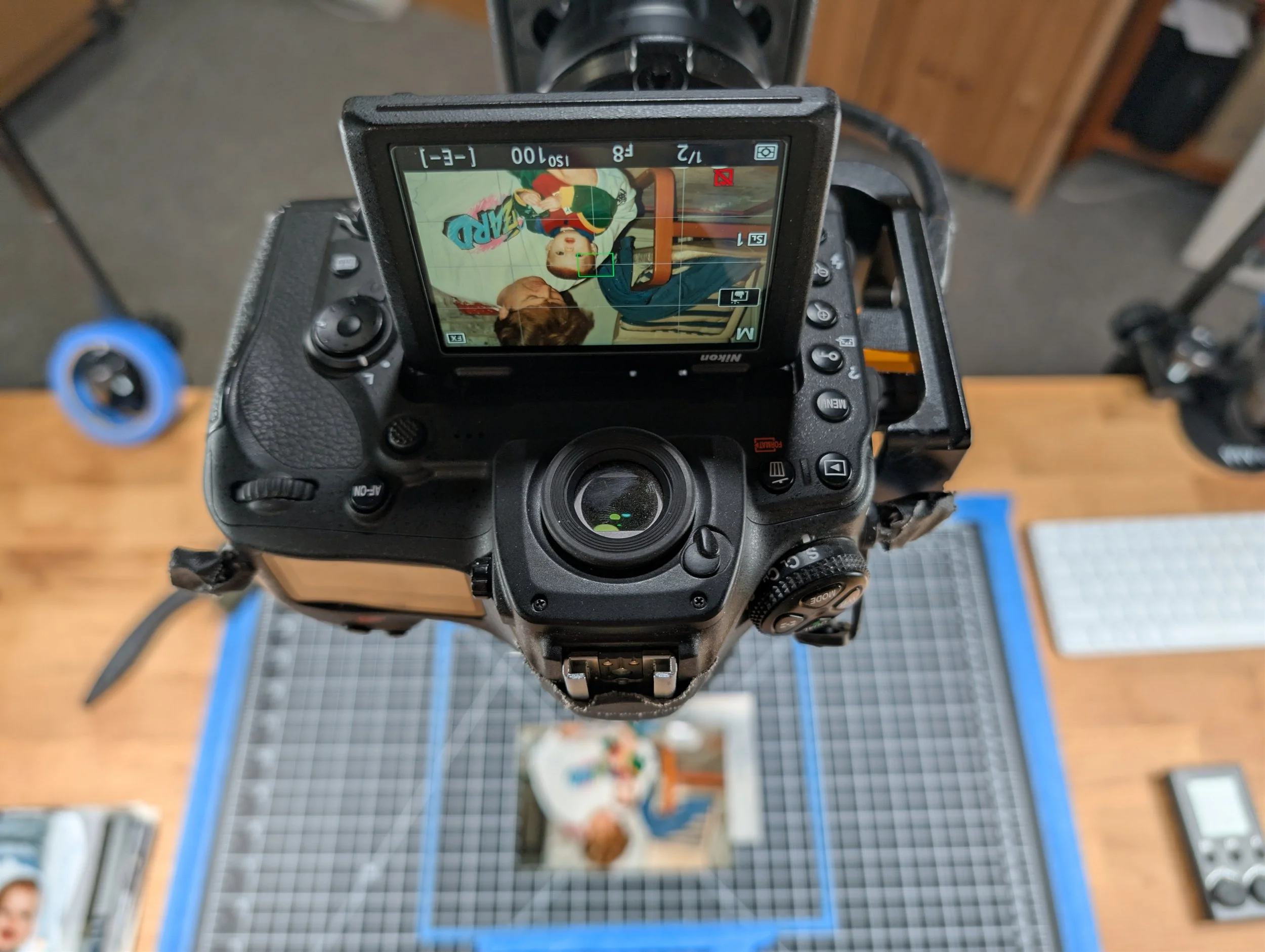
When we scan your physical photographs, we are taking a physical object from paper and converting it into a purely digital grid. Because a digital file does not have physical ink on it, it has zero DPI. It only gains DPI the moment you send it to a printer to be printed back onto paper!
While the photo is living on your hard drive, in your cloud storage, or on your phone screen, its resolution is strictly measured in PPI.
The Easy Mental Rule:
• Scanning / Screen Viewing: You are dealing with PPI (Pixels).
• Printing on Paper: You are dealing with DPI (Ink Dots).
How PPI Impacts Your Digitized Photos
PPI determines how much fine detail is captured from the physical print—and how large you can later print or display that photo without it looking blurry or blocky.
300 PPI: Standard Archival Quality
Captures a photo at a 1:1 scale for exact digital reproduction. A 4x6 print scanned at 300 PPI produces a 1200x1800 pixel digital file. Perfect for viewing on standard screens or re-printing at the same 4×6 size.
600 PPI: Premium Archival Quality (Our Standard)
Captures double the detail of a standard scan. A 4x6 print scanned at 600 PPI creates a 2400x3600 pixel digital file. That’s enough headroom to crop in on a family member’s face, display the photo on a large 4K TV screen, or enlarge a 4x6 print to fit an 8x12 frame without losing sharpness.
We follow the FADGI (Federal Agencies Digital Guidelines Initiative) 3-Star “Master Archival” and 4-Star “Cultural Heritage” guidelines. The same guidelines used by federal agencies and museums when digitizing their collections.
Note: scanning a standard print beyond 600 PPI usually captures no additional real detail but does result in a larger file with more artificial noise. The one exception to this is prints made with engraving, Intaglio, letterpress, or rotogravure processes (think pre-1970s postage stamps with raised ink. Those benefit from much higher resolution because the printing process itself carries fine physical texture worth preserving.
1200+ PPI: Slides & Negatives
35mm slides and negatives are physically tiny (only about 1.4 inches wide), so they need extreme PPI settings to pull out enough pixel detail for a sharp image on modern screens. We scan transmissive media (slides and negatives) at 4,000 PPI, following the FADGI transmissive media guideline. That’s enough resolution for a clean print at up to 12×18 inches, with larger prints often possible.
Summary: PPI vs. DPI at a Glance
| PPI (Pixels Per Inch) | DPI (Dots Per Inch) | |
|---|---|---|
| Media Type | Digital Files & Screens | Physical Paper & Ink Prints |
| Made up of | Square Digital Pixels | Round Physical Ink Drops |
| When it Matters | Scanning, Archiving & Screen Viewing | Printing Fine Art, Photobooks & Lab Prints |
| Primary Goal | Capturing image detail & sharpness | Accurate color blending on paper |
Preserve Your Legacy in High Resolution
Understanding resolution is the first step toward safeguarding your family history. At The Picture Org(anizer), we scan all loose prints at an archival 600 PPI standard, ensuring your digitized memories are crisp, future-proof, and ready for high-definition displays or archival reprints.
Have a box of photos, slides, or albums ready for preservation? Contact us today for a free local consultation in Sammamish, WA or Depoe Bay, OR.
Bonus: Then why does my operating system show a DPI value for photos?
The "DPI" value Windows and macOS show you isn't measured or derived from anything about the actual image quality — it's just a number stored in the file's metadata, and both operating systems mislabel it. The tags surfaced by the OS were inherited from the TIFF format, which predates digital cameras and was designed for the print and publishing industry. For most photos, this value is just a default baked in by the camera software, not a measurement of anything:
Many cameras write 72 or 96 simply because those were legacy screen-resolution conventions from early Macs (72) and Windows (96) in the 1980s–90s.
Some cameras and phones write 300 because that's the print-industry "safe" number.
The value has no relationship to the actual pixel dimensions of the photo or the size of the sensor that captured it.
Bonus 2: How do I determine the actual PPI of a file if I know the size of the original print?
If you know the physical dimensions of the original print, you can calculate the file's true resolution yourself: simply divide the image's pixel width (or height) by the print's width (or height) in inches. For example, if a 4x6 print was scanned into a file that's 2,400 x 3,600 pixels, dividing 2,400 by 4 gives you 600 — meaning the file was captured at 600 PPI. This calculation is far more reliable than trusting the "DPI" value listed in your file properties, since that metadata field is often just a leftover default value rather than an accurate measurement of your scan.