The Well Tools Bundle workflow
From shoebox to finished library, in the right order.
The Well Tools Bundle puts five apps on one license key. Each one does a single job well, and they are built to hand off to each other, so the order you run them in matters. Here is the path we follow at our photo preservation studio, from a fresh scan to a library where every picture is cropped, the right way up, captioned and on its real date.
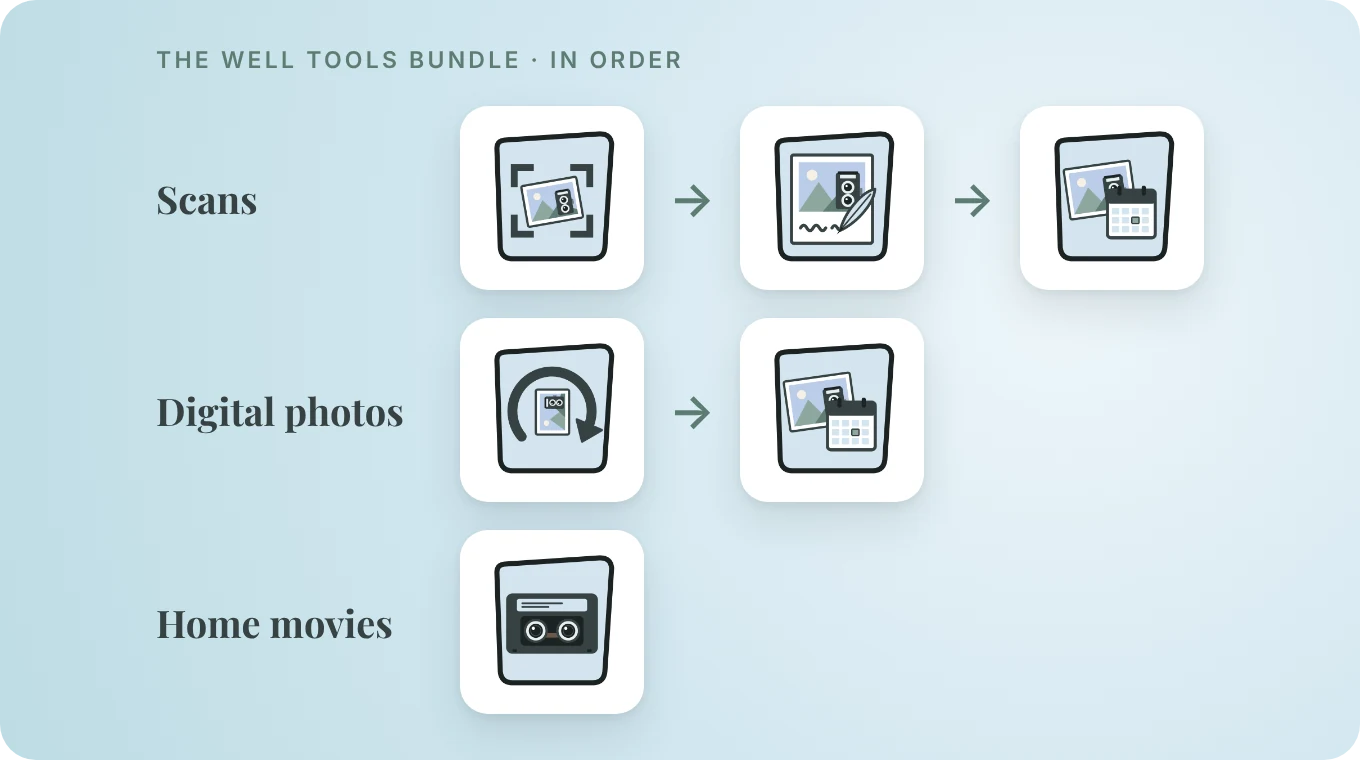
The short version
Scanned prints, slides, negatives and album pages:
Phone, camera and downloaded photos: Pivotwell → Datewell
Home movies, tapes and DVDs: Spoolwell.
Scanned prints, slides, negatives and album pages

1Crop and straighten every scan with Squarewell™
Run Squarewell first, on everything you scanned: prints, slides, negatives and album pages. It finds each picture on the scan, straightens it and crops away the background. Album and scrapbook pages come apart into one copy per print, and each label slip beside a print gets a copy of its own (a “Photo 2 note”). Along the way it flags photos that look sideways, flips slides and negatives scanned backwards, and spots black-and-white negatives before Negative Lab Pro.
- If a print has writing or a lab's date on its white border, keep the border: Squarewell can keep it whole when there is writing on it, and the next two apps read it.
- Do a whole roll, carrier or session at once. Squarewell learns your copy stand and crops more exactly.

2Read the captions with Labelwell™
Next, Labelwell reads the handwriting: the label slips Squarewell gave their own copies, captions written on a print's border, and the backs of prints. It writes each one into the photo's caption as a draft, keyworded so you can check the spelling before anything is delivered.
- Scanned the backs too? Scan each front followed by its back, and choose fronts followed by backs. Each back's writing goes on its front.
- Several photos share one label? Copy a caption to the photos beside it in one step.

3Put every scan on its real date with Datewell™
Last, Datewell replaces the scan date with the real one. It reads the date you wrote in the file name, the orange date stamp a film camera printed in the corner, or the month and year a lab printed on the border. Nothing changes until you have seen the preview, and any run can be undone.
- No date anywhere? In Lightroom Classic, put the prints in order by hand, type a date, and each gets a time that keeps that order.
- Dating last means the finished set sorts correctly in Lightroom, Apple Photos, Google Photos and Windows.
Phone, camera and downloaded photos

1Turn sideways photos upright with Pivotwell™
Phone and camera pictures often arrive lying on their side. Pivotwell looks at the faces, the scene and the sky, flags the photos that need turning and says how sure it is, so you only glance at the doubtful ones. It turns them only when you ask.
- Scans don't need this step: Squarewell has the same rotation check built in, and the two share their answers, so no photo is checked twice.
2Fix the dates with Datewell™
Datewell reads phone and camera names such as IMG_20190312_142310, and puts the real date back on photos from a Google Takeout, Apple Photos, iCloud or Facebook download, using the files the download keeps beside them. A camera's own date is kept unless you say otherwise.
Home movies, tapes and DVDs

Finish every tape and disc with Spoolwell™
Spoolwell takes over once a VHS, Hi8 or MiniDV tape is captured. A good order for each tape:
- Check videos for damage and sound sync, so a bad capture is caught while the tape is still in the deck.
- Merge by recording day, so a pile of clips becomes one dated video per day.
- Trim the blue screen the VCR left at the start, end and middle.
- Split two hours of tape into the moments that matter, and add titles in your own branding.
- Set a video's date where it is wrong. Find date stamps shows the date a camcorder printed on screen, so you can read it.
- Make videos smaller: on by default after merging, trimming and splitting, and each new file is checked against its original.
- Copied a DVD? Convert a DVD turns each title into an MP4 that plays anywhere.
Why this order
- Crop first.
- Labelwell and Datewell read what is on the picture: label slips, borders and date stamps. Squarewell gives each print and each label its own clean copy for them to read.
- Captions before dates.
- Labelwell works straight from the copies Squarewell made, and Datewell then settles the date of the finished set.
- Rotation once.
- Squarewell already checks scans for sideways photos. Pivotwell is for the digital photos that never went through Squarewell.
- Lightroom or not, your choice.
- All five apps come as a Lightroom Classic plug-in and as a Windows & Mac app that needs no Lightroom. One license covers both, and you can mix them.
- Your originals stay safe.
- In Lightroom the changes are Lightroom's own settings and can be undone. The apps save new copies, sidecars or dates only after you have checked them.
Good companions
Not in the bundle, but they slot into the same path:

Sortwell™
Before Squarewell · $49, sold on its own
Scan a collection in batches with a card at the start of each batch? Sortwell reads the cards and puts every batch in its own folder.

Matchwell™
Before Pivotwell · $49, sold on its own
Photos from backups and shared albums, three or four times over? Matchwell keeps the best copy and folds what the others know into it.

Sweepwell™
At the very end · Free
Moving and sorting leaves empty folders behind. Sweepwell finds them and removes them only after you say yes.
The Well Tools Bundle
- Squarewell™, Spoolwell™, Pivotwell™, Datewell™ and Labelwell™ on one license key: $185 bought one at a time.
- Every app works free for 21 days on each computer first, with no watermark and no account.
- One license is for one person on up to 2 computers, covers each app and its Lightroom Classic plug-in, and includes complimentary updates within the major version.
Lost your key? · License terms · Refund policy · Questions: info@thepictureorg.com
Questions
What's in The Well Tools Bundle?
Squarewell, Spoolwell, Pivotwell, Datewell and Labelwell, on one license key for $149 (they come to $185 bought one at a time). Like every -well license, it is for one person on up to 2 computers, covers each app and its Lightroom Classic plug-in, and includes complimentary updates within the major version.
Do I have to use all five, in this order?
No. Each app works on its own. The order above is simply the one that saves the most work, because each app hands something to the next. Skip any step you don't need: digital photos skip Squarewell and Labelwell, and scans skip Pivotwell.
Do I need Lightroom Classic?
No. Every app in the bundle also comes as a Windows & Mac app that needs no Lightroom. If you do use Lightroom Classic, the plug-ins run from Library > Plug-in Extras on the photos you select.
Do the apps share anything?
Yes. Squarewell and Pivotwell share their rotation answers, so a photo one has checked isn't checked again by the other. An API key saved in Labelwell for reading hard handwriting online works in Datewell too, and the other way round. Online reading is always optional.
Can I try the workflow before I buy?
Yes. Every app works free for 21 days on each computer, with every feature, no watermark and no account. Download them from each app's page and buy the bundle when you're ready; the bundle key unlocks all five.
Where do Matchwell and Sortwell fit?
They are sold on their own, not in the bundle. Sortwell goes before Squarewell when you scan in batches with a card at the start of each, and Matchwell goes before Pivotwell when a collection holds the same photos several times.
Each app's User Guide has the details, or email info@thepictureorg.com.