
Collatewell™ User Guide
Image CollatorContents
What Collatewell is
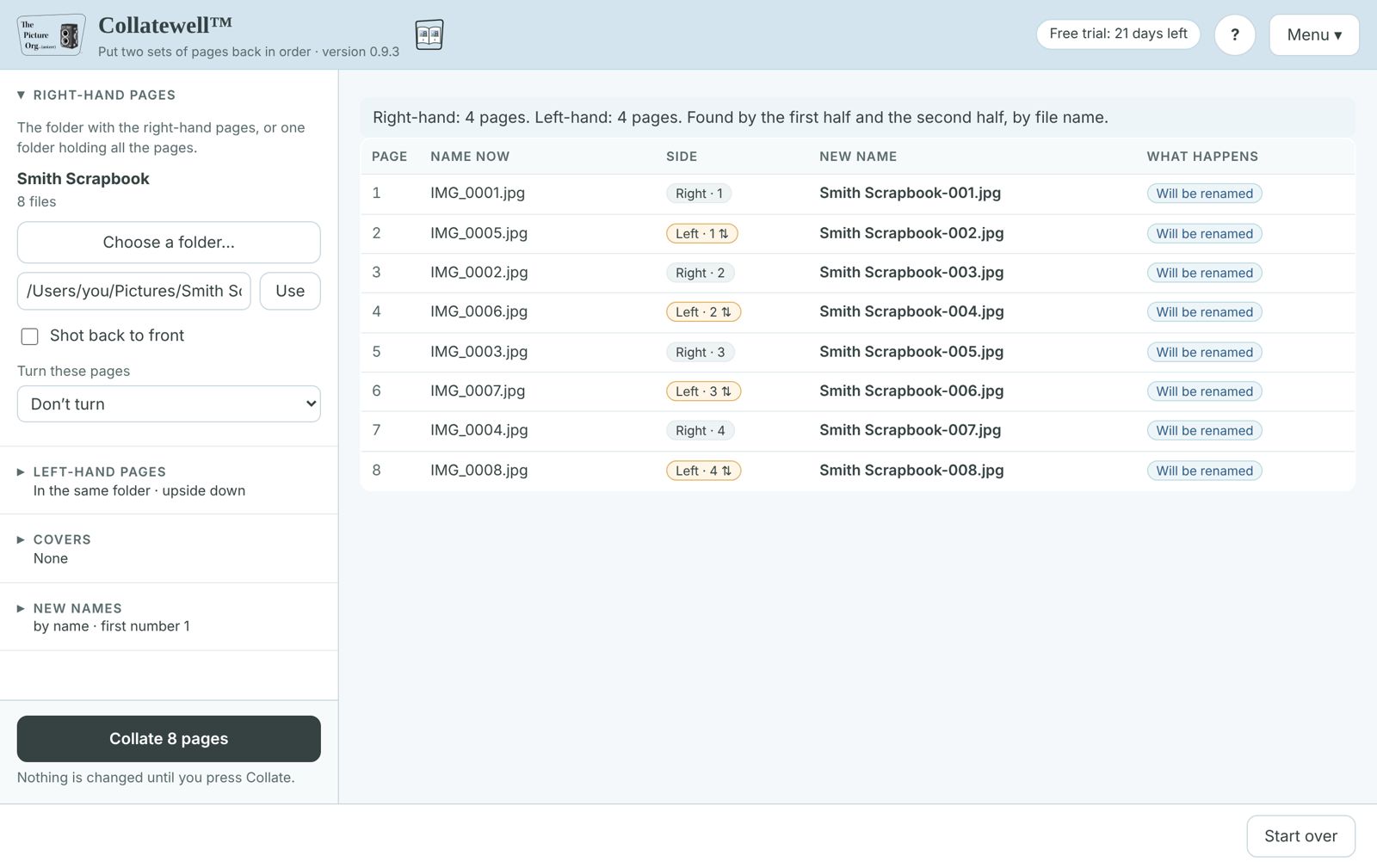
Collatewell puts the pages of a bound book or scrapbook back in order. A bound book can't be laid flat, so it is often shot all the right-hand pages first, then turned and shot all the left-hand pages. Collatewell takes the right-hand pages and the left-hand pages and renames the files so they are in page order again: right-hand page 1, left-hand page 1, right-hand page 2, and so on. A front cover and a back cover shot separately can go first and last.
Right-hand pages               Left-hand pages
  IMG_0001.jpg                   IMG_0041.jpg
  IMG_0002.jpg                   IMG_0042.jpg

  IMG_0001.jpg  ->  Smith Scrapbook-001.jpg
  IMG_0041.jpg  ->  Smith Scrapbook-002.jpg
  IMG_0002.jpg  ->  Smith Scrapbook-003.jpg
  IMG_0042.jpg  ->  Smith Scrapbook-004.jpg
It comes two ways, with one license for both: a Lightroom Classic plug-in (Library > Plug-in Extras > Collate pages), and an app for Windows and Mac for files that aren't in a Lightroom catalog.
Nothing is renamed until you have seen the whole page order, and every run can be undone.
Quick start
- Install Collatewell: see Install.
In Lightroom Classic
- Select all the pages in the Library (both folders' photos, or the one folder that holds them all), and the covers if you shot them.
- Library > Plug-in Extras > Collate pages.
- Under Right-hand pages, pick the set that holds them; the other set is the left-hand pages. Pick the Front cover and Back cover if you have them. Then click Preview the page order.
- Check the order, then click Collate.
- Sort the grid by File Name (View > Sort > File Name) to see the pages in order.
In the app
- Start Collatewell (Windows: Start menu; Mac: Applications > ThePictureOrg).
- Under Right-hand pages, click Choose a folder… and pick the folder with the right-hand pages. Under Left-hand pages, choose the folder with the left-hand pages, or leave it as it is when all the pages are in one folder.
- Under Covers, choose the front and back cover if you shot them separately.
- The list shows every page in its new order, with its new name. Nothing is changed until you press Collate.
- Click Collate (Stop ends the run). A card says how many pages were collated and what to do about any that weren't, with Show the files, Undo this run and Collate more pages.
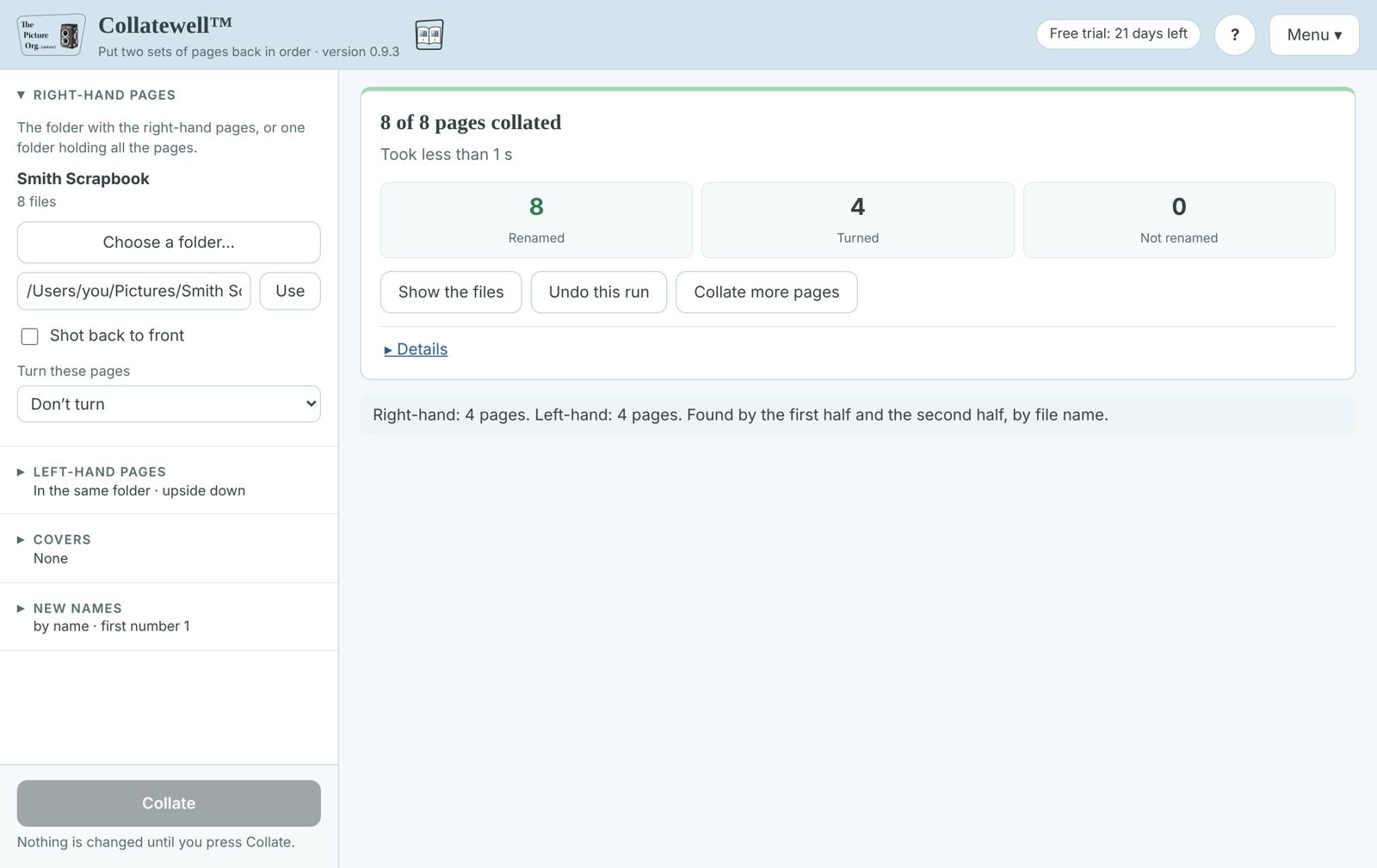
To put the old names back: Undo this run in the app, or Library > Plug-in Extras > Undo a Collatewell run in Lightroom (see Undo).
Next: Slides and their mounts, How Collatewell finds the two sets, Settings, When the sets don't fit together.
Shoot a book in two sets
- Shoot every right-hand page, from the front of the book to the back.
- Shoot every left-hand page. Shoot them from the front to the back as well; if you turn the book over and go from the back to the front instead, tick Shot back to front for the left-hand pages.
- Keep each set in order: one folder for each set is the surest. If both sets go into one folder, a short pause between the two sessions is enough for Collatewell to tell them apart.
- Shoot the covers whenever suits you, in any folder: you pick them by name.
A page with nothing on it still needs its shot, so the two sets stay the same length. One set may have one page more than the other (a book that ends on a right-hand page): that page goes last.
You can shoot the left-hand pages first too: you say which set is which.
Slides and their mounts
Slides work the same way as a book. A slide needs light from behind and its mount needs light from the front, so shoot every slide in a tray first, then every mount in the same order. Collatewell puts them back as slide, mount, slide, mount, and Labelwell's Read captions from photo backs can then put each mount's writing into its slide's caption.
- Shoot the slides of one tray into one folder (for example "Tray 03 slides"), first to last.
- Put the slides back in the same order, switch to front light, and shoot each mount into a second folder ("Tray 03 mounts"), writing toward the camera. Shoot a mount even when it has no writing, or every caption after it lands on the wrong slide.
- Choose the slides folder as the Right-hand pages and the mounts folder as the Left-hand pages, with Page 1 is a right-hand page, so each slide comes before its mount. Leave the covers empty.
- Check that the preview has the same number of slides and mounts. For slides, one extra means a slide or a mount was skipped: find it before you collate. If you went through the tray backwards for the mounts, tick Shot back to front for the left-hand pages.
- Collate, sort by file name, then run Labelwell's Read captions from photo backs on the pairs.
How Collatewell finds the two sets
You always say which set is the right-hand pages:
- In the app, the two folders you choose are the right-hand and left-hand pages. With one folder, Collatewell splits it in two and shows which photos it takes for each side; Swap right and left changes them over.
- In Lightroom, the Right-hand pages menu lists the two sets Collatewell found (each as its folder and its first and last file names). Pick the one that holds the right-hand pages.
Collatewell splits the photos into two sets this way:
- Two folders: one set in each.
- One folder: at the longest pause between captures, when that pause leaves at least a third of the photos on each side. Otherwise it splits the photos in half by file name.
The covers you pick are left out before the photos are split. The preview says which way the sets were found and how many pages each side has.
Settings
- Right-hand pages (Lightroom) or Swap right and left (app): which set is the right-hand pages.
- Shot back to front: for a side shot from the back of the book to the front, usually because the book was turned over. Each side has its own box.
- Turn these pages: turns every page of one side a quarter turn right, a quarter turn left, or upside down, for a book shot sideways or a side shot with the book turned round. Each side has its own setting. See Turning pages.
- Front cover and Back cover: photos shot separately that go first and last. They are numbered with the pages (the front cover is 001).
- Page 1 is: a right-hand page (most books) or a left-hand page (a scrapbook that opens on a spread).
- Order within each side: by File name (the camera's numbers, the usual choice) or Capture time. In the app, the time is when each file was made.
- Start each name with: the start of the new names, for example "Smith Scrapbook". Left empty, it is the right-hand pages' folder name.
- First number: the number of the first page, 1 unless you are adding to pages already done.
In the app, each settings section folds to one line that says what it is set to. Page 1 is, Order within each side and First number are under New names > More options. Reset to defaults… (in the menu, and at the end of More options) puts every setting back as it was when Collatewell was installed.
The app's Menu (top right) has the User Guide, Undo an earlier run…, Check for updates, License…, Check my setup…, Create an error log…, the window's look (Light, Dark or System) and Reset to defaults…. It is the same menu in every Picture Org app.
The numbers have three digits (001), or more for a book of over 999 pages, so the files sort in page order everywhere. The extension (.jpg, .CR2, .tif and so on) stays as it is, and each file's sidecars (.xmp) are renamed with it. Each file stays in its folder.
Turning pages
When one side comes out sideways or upside down, set Turn these pages for that side. The preview shows a turn arrow beside each page that will be turned, and the pages are turned when you click Collate.
- Lightroom Classic: Collatewell uses Lightroom's own Rotate Right and Rotate Left, so the turn works like turning the photos yourself. It then saves the turn to the files' metadata, so other programs show the pages the same way. A photo shown mirrored (flipped) is left as it is, and Collatewell says so.
- The app: nothing is recompressed. A JPEG gets a new orientation tag, a TIFF or DNG has its orientation tag changed in place, and a camera raw file (.CR3, .NEF, .ARW and so on) is left untouched while its .xmp sidecar carries the turn (Lightroom, Bridge and Camera Raw read it). Other kinds of files, such as PNG and HEIC, and a TIFF without an orientation tag, can't be turned this way: the preview says so, and you can turn them in Lightroom instead.
When the sets don't fit together
Collatewell renames nothing when the pages can't go back in order:
- the right-hand and left-hand pages differ by more than one: a page was missed or shot twice. Find it, shoot it again or delete the extra, and preview again;
- a page can't take its new name (a file with that name is already in the folder and isn't part of the run, or the name has a character Windows or a Mac doesn't allow:
< > : " / \ | ? *); - a file is missing or offline.
This way a missed page never shifts every page after it. The preview lists what is wrong.
What can't be carried over
Lightroom doesn't let plug-ins rename a photo in the catalog, so Collatewell does what Lightroom would do if you renamed the files yourself and then found them again, and carries everything it can across: flags, stars, color labels, keywords, captions, edits and collections. A few things can't be set by a plug-in, so they don't come along:
- Develop snapshots and the History list. The edits themselves are kept; the History list starts again.
- Virtual copies (the copies are not renamed with the master photo) and stacks (the photos are unstacked).
- Links to publish services (the photo is published again under its new name next time).
- Fields that other plug-ins keep.
Collatewell tells you before anything is renamed if any of the photos have these, and you can still stop.
Undo
- Lightroom Classic: Library > Plug-in Extras > Undo a Collatewell run. Choose the run from the list (newest first) and click Put the old names back. Each photo is carried back with its flags, keywords and edits. Pages Collatewell turned are turned back with Edit > Undo (Lightroom's own rotate), right after the run.
- The app: Undo this run after a run, or Menu > Undo an earlier run… for earlier ones. Pages the run turned are turned back first, then the old names are put back.
Runs made in the app are listed in Lightroom too, and the other way round. Each run keeps a small undo file in your PictureOrg folder, "Collatewell-undo". A file that was renamed or moved again after the run, or whose old name is now taken, is left as it is, and the undo says so.
Keyboard and Stream Deck
Every action in Collatewell has a key, and the same kind of action has the same key in every -well app: F chooses a folder, G starts the main step, X stops. Anything that writes, moves, renames or deletes files needs Shift (Shift+W saves), so a stray key press never changes your files. Keys do nothing while you are typing in a box, or while a card covers the button. Press ? in the app to see the keys for the screen you're on.
The keys
A key does exactly what clicking its button does, and only when that button is on the screen.
| Key | Does | Name for a Stream Deck button |
|---|---|---|
| F | Choose a folder | folder |
| P | Choose the right-hand pages | photos |
| X | Stop | stop |
| Shift+W | Collate | write |
| Shift+U | Undo this run | undo-run |
| U | Undo an earlier run... | undo-list |
| N | Start over | new |
| 1 to 9 | Pick a filter tab (1 = the first) | filter-1 to filter-9 |
| Left arrow | Previous photo | prev |
| Right arrow | Next photo | next |
| Esc | Close the card | close |
| H or F1 | User Guide | guide |
| E | Create an error log | report |
| K | Check my setup | check |
| L | License... | license |
| T | Settings | settings |
| Shift+Q | Quit | quit |
| S | Choose the left-hand pages | second |
| ? | Show the list of keys | keys |
Stream Deck and other macro pads
Any macro pad that sends keystrokes (a Stream Deck Hotkey button, a Loupedeck, a programmable keyboard) can press the keys above while Collatewell's window is in front.
For buttons that work while Collatewell is behind other windows, add The Picture Org -well tools for Stream Deck, which comes with Collatewell: press ? in Collatewell and click Add Stream Deck buttons (the Stream Deck app, free from Elgato, must be installed). The Stream Deck app asks to install it. It adds two ready-made profiles, The Picture Org apps (a folder for each app with its window's actions) and The Picture Org in Lightroom (a folder for each app with its Lightroom commands), and two buttons under The Picture Org for building your own:
- App action: pick Collatewell and an action. The button shows the app's icon and the action's name; pressing it runs the action in Collatewell, opening the app first if it isn't open. A check mark means it ran; a warning triangle means the button wasn't on the screen (or the app couldn't be reached).
- Lightroom command: pick Collatewell and one of its Lightroom commands. It runs in Lightroom Classic on the photos selected there, exactly as if you chose it from Library > Plug-in Extras. Lightroom must be open with the Collatewell plug-in enabled.
To put the ready-made buttons into a profile you already use (your own Lightroom profile, say), right-click an app's folder in the ready-made profile, choose Copy, then right-click an empty key in your profile and choose Paste: the folder comes with all its buttons, and its top-left key goes back.
Other tools can do the same from a command line: Collatewell --do <name> (on Windows, Collatewell.exe in Collatewell's folder), using the names in the tables. It only reaches the copy of Collatewell running for you on this computer.
Lightroom Classic
Lightroom doesn't let a plug-in use keyboard keys or put a shortcut on its menu items, so ? works only in the Collatewell app's own window. In Lightroom, click Keyboard shortcuts (in the Collatewell window, next to User Guide, or in the Plug-in Manager) to see Collatewell's commands and the ways to run them without the menu, and to add the Stream Deck buttons. The Collatewell plug-in listens for Collatewell --do lr:<name> (and the Stream Deck button) instead, on this computer only:
| Library > Plug-in Extras | Name |
|---|---|
| Collate pages | lr:collate |
| Undo a Collatewell run | lr:undo |
| Collatewell: Create an error log | lr:report |
Your own keys in Lightroom. In the Keyboard shortcuts window, choose a key for any of Collatewell's commands (for example Ctrl+Alt+Shift+C, or an F key on its own) and click Save keys. Keys are shared by all Picture Org plug-ins, so one key runs one command, and the window tells you if another plug-in already has the key you picked or if Lightroom uses it itself. The keys don't click through the menu: they hand the command straight to the plug-in, so they keep working when you add, remove or rename other plug-ins.
- Windows: the keys work while Lightroom is the window in front, and every other program keeps them. A small helper that comes with Collatewell (The Picture Org Lightroom keys) starts with Lightroom and stops a little after Lightroom closes; it never watches your typing. If another program already holds a key, the window says so: choose another.
- Mac: your keys go into the Mac's own App Shortcuts for Lightroom Classic (System Settings > Keyboard > Keyboard Shortcuts > App Shortcuts) and work once you quit and reopen Lightroom. Any App Shortcuts you made yourself are kept.
Install
There are three downloads. The installers ask what to install: the Lightroom Classic plug-in, the standalone app (no Lightroom needed), or both. One license covers both, and you can run the installer again later to add the other.
Windows: the Setup program (ThePictureOrg-Collatewell-Setup-<version>.exe)
- If you are installing the plug-in, close Lightroom Classic.
- Double-click the Setup program. If Windows shows "Windows protected your PC", click More info, then Run anyway.
- Accept the license, tick what to install and click Install.
- The app is in the Start menu as Collatewell. For the plug-in, start Lightroom Classic. Select both sets of photos (or the two folders' photos), then Library > Plug-in Extras > Collate pages.
Mac: the Install Collatewell app (ThePictureOrg-Collatewell-Mac-<version>.zip)
A Mac with Apple silicon (M1 or later) and macOS 13 or later. Intel Macs aren't supported: on one, the installer says so and stops. The Windows version runs on any 64-bit Windows 10 or 11 PC.
- Double-click the zip to unzip it. If you are installing the plug-in, quit Lightroom Classic.
- Double-click Install Collatewell, and click Open when macOS asks. It is signed and checked by Apple.
- Choose what to install and click Install.
- The app is in Applications > ThePictureOrg. For the plug-in, start Lightroom Classic. Select both sets of photos (or the two folders' photos), then Library > Plug-in Extras > Collate pages.
Updating and removing: run the installer from the new download the same way, or click Install now when Collatewell offers an update (see Updates). Your settings and license key are kept. To remove Collatewell, use Uninstall Collatewell in the Start menu on Windows, or the Uninstall Collatewell app in the Mac download.
Installing the plug-in by hand: on Windows, right-click ThePictureOrg-Collatewell-Win-<version>.zip, choose Properties, tick Unblock, and unzip it. On a Mac, right-click Install Collatewell, choose Show Package Contents and open Contents > Resources. Move the PictureOrgCollatewell.lrplugin folder somewhere permanent, then in Lightroom Classic choose File > Plug-in Manager > Add and pick it. Use one way or the other, not both, or the menu appears twice.
Where it goes: the installers put the plug-in in Lightroom's own plug-in folder for your user account, where Lightroom finds it by itself (%APPDATA%\Adobe\Lightroom\Modules\PictureOrgCollatewell.lrplugin on Windows, ~/Library/Application Support/Adobe/Lightroom/Modules/PictureOrgCollatewell.lrplugin on a Mac). No administrator password is needed. If the Mac installer has a problem, it keeps a log for support in ~/Library/Logs/PictureOrg/Collatewell-install.log.
License and free trial
- Free trial: every feature works for 21 days on each computer. The Plug-in Manager panel and the app show how many days are left, for example "Free trial: 14 days left".
- After the trial: for 7 more days Collatewell still works, with a reminder. After that, the preview of the page order still works, and collating needs a license key. When a license key is needed, Collatewell says "the free trial has ended" and offers Buy a license and Enter key....
- Buying: click Buy a license in the License section of File > Plug-in Manager (select Collatewell), or on the license line at the top of the app, or go to thepictureorg.com/tools. One license is for one person on up to 2 computers, covers the app and the Lightroom plug-in, and includes complimentary updates within the major version (a version 1 key works for every 1.x release).
- Entering your key: paste the whole key from your order email into the License key box in the Plug-in Manager and click Enter key, or click the license line at the top of the app. Spaces and line breaks don't matter. It then says "Licensed to" and your name. The key is checked on this computer: nothing is sent anywhere, and no internet connection is needed.
- Plug-in and app: one license, one free trial. The plug-in and the app share the key and the 21-day count on each computer, so a key entered in either unlocks both.
- New computer: click Remove license from this computer on the old one (it asks first), then enter the key on the new one.
- Where the key is kept: in your user account, not in the program's folder, so it stays through updates and reinstalling:
%LOCALAPPDATA%\PictureOrgon Windows,~/Library/Application Support/PictureOrgon a Mac.
Updates
- Automatic check: every time Lightroom starts, and once a day while it stays open, Collatewell looks up the current version number on thepictureorg.com's download service, in the background. Only that small version list is fetched: nothing about your computer, your photos or your license key is sent.
- When a new version is out: the next time you run Collatewell, a message says so once per Lightroom session: Install now (or Download), Not now (asks again next time you start Lightroom) and Skip this version (stays quiet until a later version comes out). Nothing is downloaded or installed until you click.
- Install now: Collatewell downloads the update, checks that it arrived whole and unchanged, that it carries The Picture Org's release signature and that it is newer than the version you have, and installs it into its own folder and the standalone app's (when you have both), with a progress bar. Then quit and restart Lightroom Classic to start using it. If anything goes wrong, every file is put back as it was.
- Download: opens the installer download in your browser; close Lightroom Classic and run the new Setup program (Windows) or Install Collatewell (Mac). Your settings and license key are kept either way.
- Plug-in Manager > Updates: shows your version and whether a newer one is out, with Check now, Install update, Download installer and What's new. Untick Check for updates automatically to turn the automatic check off; Check now still works. When an update can't be installed from inside your version, the panel says to use Download installer for that one.
- The app checks every time it opens, and Check for updates checks at any time. When a new version is out, a bar at the top lets you install it (the app installs it into its own folder, then restarts itself), download the installer, see what's new, leave it for now, or skip that version. Installing an update in either one updates both: the plug-in in Lightroom and the app. Restart Lightroom Classic afterwards if it was open.
Updates within the major version are complimentary.
Help
A photo shows as missing in Lightroom after using the app: the app renamed the file outside Lightroom. Undo the run in the app, then collate the pages with the plug-in instead.
The pages are in order on disk but not in Lightroom's grid: choose View > Sort > File Name.
Pages swap places part way through: a page was skipped in one set and another shot twice, so the counts still match. Undo the run, find the page in the preview, and fix the set.
Check my setup (in the app's menu, or in File > Plug-in Manager with Collatewell selected) checks that everything Collatewell needs works on this computer, and shows the result as text you can copy or save.
Create an error log (in the app's menu, or Library > Plug-in Extras > Collatewell: Create an error log) saves a text file on your Desktop with what Collatewell did, then offers to send it to The Picture Org. You see exactly what would be sent before anything goes: your home folder, user name, computer name, email addresses and license key are already taken out, and you can delete anything else. Add a few words about what went wrong, and your email if you would like an answer, then click Send to The Picture Org. File and folder names are in it; your photos aren't. Nothing is sent unless you click Send. Without an internet connection, email the file instead.
Appendix: License and credits
© 2026 The Picture Org LLC · thepictureorg.com. Collatewell needs nothing beyond the Python that comes with it. See NOTICE.txt.
This is the User Guide that comes with Collatewell, kept up to date with each release. Questions: info@thepictureorg.com · Collatewell home page · All the -well tools